
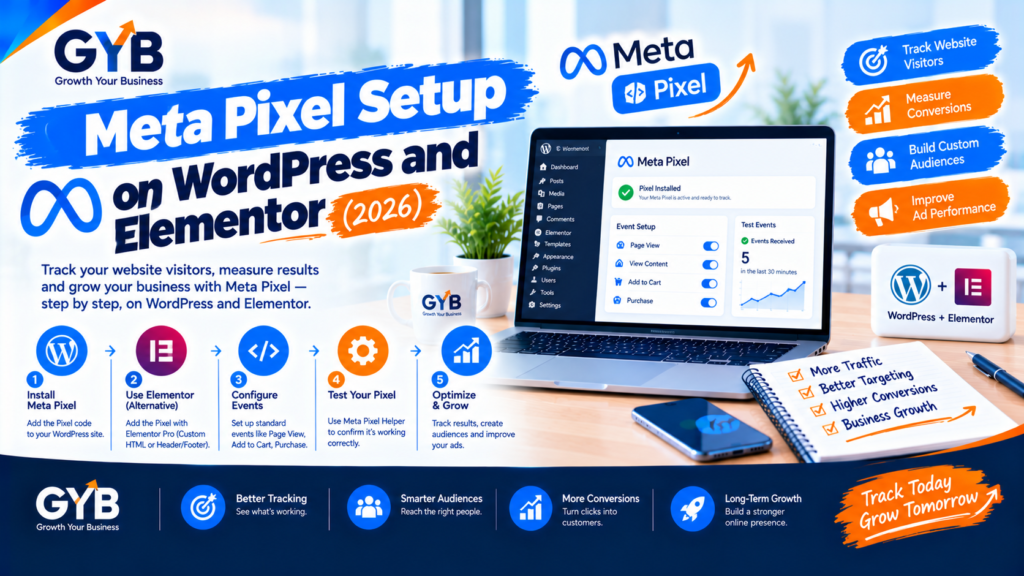
Meta Pixel Setup on WordPress and Elementor (2026)
Meta Pixel setup on WordPress takes three steps: create the Pixel in Meta Events Manager, install it once on your site, and verify it fires. On an Elementor Pro site, use Custom Code or Google Tag Manager. Then add events such as Lead and Purchase, and test them before you spend on ads.
Updated October 2026 by the Growth Your Business team. Growth Your Business is a performance advertising agency for UK and US businesses offering Google Ads, Meta Ads, conversion tracking and CRM integration.
Key takeaways
- The Meta Pixel is a piece of code that reports what visitors do on your site to Meta, so your ads can be measured and optimized.
- In Events Manager the Pixel is now called a dataset, and the dataset ID is your Pixel ID.
- Install it once only. Duplicate installs double count events.
- A Pixel that only records page views isn’t enough. Add standard events such as Lead, Contact and Purchase.
- Test with Test Events and Meta Pixel Helper, and add the Conversions API for more reliable data.
What is the Meta Pixel, and what is a dataset?
The Meta Pixel is a snippet of JavaScript that runs in your visitor’s browser. When someone views a page, submits a form or buys something, it sends that event to Meta. Meta uses these events to measure your campaigns, build audiences for retargeting and optimize delivery.
Meta now calls Pixels datasets in Events Manager. A dataset can combine web, app and offline events, and the ID you paste into your site is the same as your Pixel ID. If a guide says “Pixel ID” and your screen says “Dataset ID”, they mean the same number.
What do you need before you start?
- A Meta Business account and access to Events Manager
- A Facebook page and ad account connected to that business
- WordPress admin access (and a recent backup)
- A list of any existing Pixel code on your site, so you can remove duplicates
- A cookie consent tool, if you serve visitors in the UK, EU or other regulated regions
Which method should you use to install the Meta Pixel on WordPress?
| Method | Best for | Watch out for |
|---|---|---|
| Elementor Pro Custom Code | Simple base install on Elementor Pro sites | Events (Lead, Contact) need extra setup |
| Google Tag Manager | Sites that already use GTM. Full control over events | Must be set up and published correctly |
| Tracking plugin (for example PixelYourSite) | Stores and sites that want point-and-click events | Another plugin to maintain |
| Official Meta Pixel plugin | Beginners who want Meta’s own tool | Some guides report a mixed record, so test carefully |
| Code-snippet plugin (for example WPCode) | Sites without Elementor Pro | Place code in the head, once |
| Facebook for WooCommerce | WooCommerce stores | Check events at checkout |
| Manual theme edit | Developers only | Use a child theme, or updates erase it |
Our recommendation for your stack (Astra, Elementor Pro): if you already run Google Tag Manager, install the Pixel through GTM. If not, use Elementor Pro Custom Code for the base code. See our guide to installing Google Tag Manager on WordPress (link once published).
How do you set up the Meta Pixel? (Step by step)
Step 1: Create the Pixel (dataset) in Events Manager
- Open Meta Events Manager (not Ads Manager).
- Click Connect data and choose Web.
- Name the new dataset (for example, your business name).
- Choose the Meta Pixel option. Events Manager shows your base code and your Pixel (dataset) ID. You can find the ID again under the dataset’s Settings tab.
Step 2: Install the base code once
Option A: Elementor Pro Custom Code
- Go to Elementor → Custom Code → Add New.
- Paste the Pixel base code, set the location to
<head>and the condition to Entire Site, then publish.
Option B: Google Tag Manager
- In GTM, add a new tag and paste the base code in a Custom HTML tag (or use a Meta Pixel template if your container offers one).
- Set the trigger to All Pages, then preview and publish the container.
- If you use a consent tool, make the Pixel fire only after consent is given (see the consent section below).
Option C: A plugin
Install your chosen plugin, paste the Pixel ID in its settings, and make sure PageView is enabled. Don’t paste base code as well.
Step 3: Remove duplicates
Check every place the Pixel might already load: an old plugin, a theme setting, pasted code or a GTM tag. If two copies fire, events are counted twice and your results are distorted.
Step 4: Add standard events
A Pixel that only records page views tells Meta very little. Add events for the actions that matter:
| Business action | Standard event | Example |
|---|---|---|
| Contact form sent | Lead |
fbq('track', 'Lead'); |
| Phone or WhatsApp click | Contact |
fbq('track', 'Contact'); |
| Booking confirmed | Schedule |
fbq('track', 'Schedule'); |
| Sign-up completed | CompleteRegistration |
fbq('track', 'CompleteRegistration'); |
| Purchase | Purchase |
fbq('track', 'Purchase', {value: 49.99, currency: 'USD'}); |
Fire each event on the right trigger, such as a thank-you page or a form success. Use Tag Manager triggers or your plugin’s event options. Never put names, emails or phone numbers into event parameters.
Step 5: Test
- Test Events tool: open your dataset in Events Manager, go to Test Events, enter your website address and click through your site. Your actions should appear in the list.
- Meta Pixel Helper: install the Chrome extension, open your site and click its icon. You should see a green check and your Pixel ID, and the ID should match the one in Events Manager.
- Trigger each event yourself (send a test form, click the call button) and confirm it shows once.
Test in a normal browser with your ad blocker switched off, or use a clean browser profile. Ad blockers and privacy browsers can block the Pixel, which can make a working setup look broken.
Step 6: Clear the cache and publish
Publish your Custom Code or GTM container, then go to LiteSpeed Cache → Toolbox → Purge All and test again in an incognito window.
Step 7: Add the Conversions API
The Pixel runs in the browser, so ad blockers, browser limits and privacy settings can stop some events from reaching Meta. The Conversions API (CAPI) sends the same events from your server. Most advertisers should run both, with deduplication so each event counts once. Read our guide to Facebook Conversion API vs Pixel, or see our Meta Conversions API and server-side tracking services.
(Link to “Meta Conversions API Setup: 4 Ways and Which to Choose” once published.)
How do you know the Meta Pixel is working?
- Test Events shows your actions as you perform them.
- Meta Pixel Helper shows a green check, the right Pixel ID and the events firing. It can’t see server-side events, so use Test Events when you add the Conversions API.
- Events Manager overview lists the events your dataset receives over time.
- Compare with reality: after a few days, do the Lead events roughly match the enquiries in your inbox or CRM? If you use a CRM, our CRM integration work connects ad leads to real sales.
How do you use AI to set up the Meta Pixel, then verify by hand?
AI tools such as ChatGPT or Gemini can help you plan and troubleshoot, but they can’t see your site or your Meta account, so every step needs a human check.
| Step | What AI can do | What you must check manually |
|---|---|---|
| Plan your events | Turn your goals into a list of standard events and triggers | Confirm each event matches a real business result |
| Review your code | Spot likely errors in a snippet you paste (remove private data first) | Test in Test Events and Pixel Helper |
| Explain errors | Interpret a Pixel Helper warning or an Events Manager message | Reproduce the issue on your live site |
| Audit duplicates | List places a Pixel might already load | Search your theme, plugins, builder and GTM yourself |
| Check results | Summarize an exported events table | Compare with your CRM and inbox. Check lead quality |
Sample prompt:
I run a [type of business] on WordPress with Elementor Pro. I’m setting up the Meta Pixel. Create a table of the standard events I should track (event name, trigger, why it matters). Don’t invent parameters or include any personal data.
Never paste access tokens, passwords or customer data into an AI tool.
What are the common Meta Pixel setup mistakes?
- Installing the Pixel twice (plugin plus GTM, or plugin plus pasted code)
- Using the wrong Pixel or dataset ID
- Tracking only PageView and nothing else
- Firing the Pixel before cookie consent
- Putting personal data in event parameters
- Testing with an ad blocker on, then assuming it’s broken (or the reverse)
- Forgetting to clear the cache after changes
- Relying on Pixel Helper to confirm server-side events
UK and US notes
- Consent: in the UK and EU, the Meta Pixel generally needs consent before it fires (UK GDPR and PECR). Make sure your consent tool blocks it until the visitor agrees.
- US privacy laws: state privacy laws vary. Meta offers options for limiting data use under some US state laws, so check Meta’s current documentation and your consent setup. This is general information, not legal advice.
- Sensitive data: if you work in health, finance or another regulated area, don’t send sensitive information to Meta in events or parameters, and check Meta’s restrictions for your category.
Frequently asked questions
What is Meta Pixel setup?
Meta Pixel setup means creating a Pixel (now called a dataset) in Meta Events Manager, installing its code on your website, adding events such as Lead or Purchase, and testing that everything fires. It lets Meta measure and optimize your ads.
Is the Meta Pixel the same as a dataset?
Yes, in Events Manager they are the same object. Meta now calls Pixels datasets, and the dataset ID is the same as your Pixel ID. If you see either term in a guide, it refers to the same number.
Where do I find my Meta Pixel ID?
Open Events Manager, select your dataset and look at its Settings tab. The ID is a long number. You can also see it in your base code and in the Test Events header.
How do I add the Meta Pixel to Elementor?
With Elementor Pro, go to Custom Code, add a new snippet with your Pixel base code, set the location to the head and the condition to the entire site, and publish. Then test with Test Events and Meta Pixel Helper.
Why is my Meta Pixel not firing?
Common causes are a duplicate install, the wrong Pixel ID, a cached page, consent settings blocking it, or an ad blocker. Test in a clean browser profile, check the ID in Events Manager and purge your cache.
Do I need the Conversions API as well as the Pixel?
For most advertisers, yes. The Pixel runs in the browser and can miss events because of ad blockers and privacy settings. The Conversions API sends events from your server, and using both with deduplication gives Meta the fullest picture.
Do ad blockers affect the Meta Pixel?
Yes. Ad blockers and some privacy browsers can block the Pixel, so some events never reach Meta. That’s one reason to add the Conversions API, and a reason to test in a clean browser.
Can I use more than one Meta Pixel on my website?
Usually one dataset per website is enough. Multiple Pixels can cause confusion and duplicate events unless you have a clear reason and a careful setup. Use one and check for duplicates.
Final thoughts
A good Meta Pixel setup isn’t about pasting code. It’s about installing it once, tracking the events that matter, testing them properly and backing them up with the Conversions API. Get that right and Meta has the data it needs to find you more of the customers you want.
Sources
- Ads Uploader: How to Set Up the Meta Pixel
- Ads Uploader: How to Add the Meta Pixel to WordPress (2026 Guide)
- Analytify: Set up Meta Pixel tracking on WordPress
- Add a link to Meta’s official Business Help article on creating a Meta Pixel (search “create a Meta Pixel” in Meta Business Help Center and paste the URL)
Not Sure Your Meta Tracking Is Accurate?
Growth Your Business sets up and audits the Meta Pixel, Conversions API and server-side tracking, so your Meta Ads run on data you can trust. See our Meta Ads management and Google Tag Manager setup services, or learn about us.
Prefer to talk first? Get a Free Consultation, or Book a Free 30-Minute Call, or Message us on WhatsApp or visit our Contact page.
Pingback: Server-Side Tracking vs Client-Side Tracking: Which Wins?