
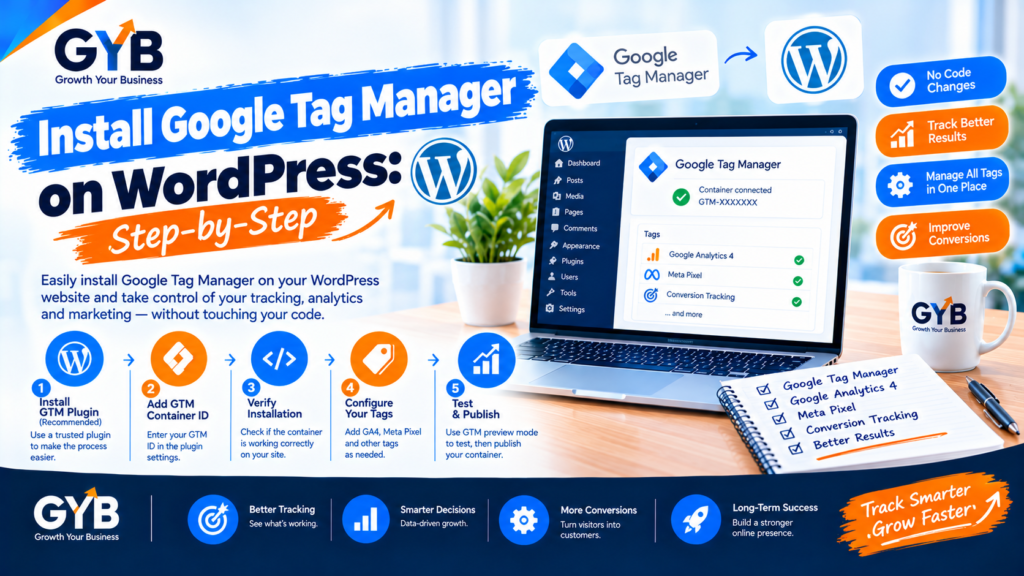
Install Google Tag Manager on WordPress: Step-by-Step
To install Google Tag Manager on WordPress, create a web container in GTM, then add its two code snippets: one in the head and one right after the opening body tag. You can do that with a plugin such as GTM4WP or Site Kit, with Elementor Pro’s Custom Code, or by editing your theme. Then test in Preview mode, remove any duplicate tracking code and publish the container.
Updated October 2026 by the Growth Your Business team. Growth Your Business is a performance advertising agency for UK and US businesses offering Google Ads, Meta Ads, conversion tracking and CRM integration.
Key takeaways
- Google Tag Manager (GTM) needs two snippets: one in the
<head>and one immediately after the opening<body>tag. - Install it once only. A second copy, or a direct GA4 code beside it, double counts your data.
- For most WordPress sites, a plugin or Elementor Pro Custom Code is safer than editing theme files.
- Nothing fires on your live site until you publish the container.
- Test with Preview mode and Tag Assistant, and purge your cache afterward.
What is Google Tag Manager, and why use it on WordPress?
Google Tag Manager is a free tool that lets you add and manage tracking codes (called tags) from one dashboard, instead of pasting code into your site every time. Tags can include Google Analytics 4, Google Ads conversion tracking, the Meta Pixel and more. Each tag fires on a trigger (for example, on all pages or on a form submission).
For a WordPress site, GTM means you install code once and then control everything else without touching your theme. It’s the foundation for accurate conversion tracking, which our Google Tag Manager setup service builds on.
What do you need before you start?
- A Google account and a Tag Manager account
- WordPress admin access (and, ideally, a recent backup)
- A list of tracking codes already on your site, such as a direct GA4 tag, a Meta Pixel plugin or a theme setting, so you can remove duplicates
- A cookie consent tool, if you serve visitors in the UK, EU or other regulated regions
Which method should you use to install GTM on WordPress?
| Method | Best for | Watch out for |
|---|---|---|
| GTM4WP plugin | Most WordPress sites. You paste your container ID | An extra plugin to maintain |
| Site Kit by Google | Sites already using Google’s plugin | Mostly built for Google’s own tools, and may overlap with other tracking |
| Elementor Pro Custom Code | Elementor Pro sites like yours | Place the two snippets in the right locations |
| Header/footer code plugin | Sites without Elementor Pro | You must add the body snippet correctly |
| Manual theme edit | Developers only | Use a child theme, or the code disappears on theme updates |
Our recommendation: if you use Elementor Pro, use Custom Code. Otherwise use GTM4WP.
How do you install Google Tag Manager on WordPress? (Step by step)
Step 1: Create your GTM account and container
- Go to tagmanager.google.com and sign in.
- Click Create Account, add your business name and country.
- Create a container, using your website domain as the name, and choose Web as the target platform.
- Accept the terms. GTM shows you your container ID (it starts with
GTM-).
Step 2: Copy the two snippets
In GTM, click your container ID (or go to Admin → Install Google Tag Manager). You’ll see two blocks of code:
- Snippet 1 goes in the
<head>, as high as possible. - Snippet 2 (a
noscriptblock) goes immediately after the opening<body>tag.
Step 3: Add them to WordPress
Option A: GTM4WP plugin
- Go to Plugins → Add New, search for “GTM4WP” (Google Tag Manager for WordPress), install and activate it.
- Go to Settings → Google Tag Manager, and paste your container ID (
GTM-XXXXXXX). - Save. The plugin adds both snippets for you.
Option B: Elementor Pro Custom Code
- Go to Elementor → Custom Code → Add New.
- Paste Snippet 1, set the location to
<head>and the condition to Entire Site, then publish. - Add another Custom Code snippet with Snippet 2, set the location to
<body>Start, apply to the entire site, then publish.
Option C: Site Kit by Google
Connect Site Kit and enable its Tag Manager module with your container. Site Kit adds the snippets for you. Use this only if you’re already using Site Kit, and be careful not to duplicate tags.
Option D: Manual edit (advanced)
Use a child theme, add Snippet 1 right after the opening <head> tag and Snippet 2 immediately after the opening <body> tag (or use the wp_body_open hook where your theme supports it).
Step 4: Remove duplicate tracking
Before you add GA4 in GTM, look for any other place GA4 or a pixel might already load:
- A direct GA4 tag or Site Kit’s Analytics module
- A Meta Pixel plugin or theme setting
- Old Google Ads tags pasted into your theme or builder
If you’ve installed Analytics directly and also fire it from GTM, your pageviews and events double count. Choose one route, and remove the other.
Step 5: Add your first tag
In GTM, click Add a new tag and choose Google tag. Enter your GA4 Measurement ID (it starts with G-), and set the trigger to All Pages. For the full GA4 setup, see our GA4 setup service and our guide to GA4 key events (link once published).
Step 6: Test in Preview mode
- Click Preview in GTM and enter your website URL.
- Tag Assistant opens your site in a new tab. Confirm it says Connected and that your tag fired on the page.
- Open GA4’s Realtime report to confirm your visit appears.
Step 7: Publish the container
Click Submit, name the version (for example “Initial GTM install”) and click Publish. Unpublished tags don’t fire on the live site, which is the most common reason for “it works in Preview but not live”.
Step 8: Purge the cache and re-test
Go to LiteSpeed Cache → Toolbox → Purge All, then open your site in an incognito window and test again. If tags fire late or not at all, check your optimization plugin’s JavaScript defer or delay settings, and exclude the Tag Manager script. The exact setting names vary by plugin.
How do you check that Google Tag Manager is installed correctly?
- Tag Assistant: it should show your container as connected and list the tags that fired.
- View page source: search for
googletagmanager.com/gtm.jsand for your container ID. You should find one container, not two. - GA4 Realtime: your test visit should show up once.
- Browser developer tools (Network tab): filter for
gtm.jsto confirm it loads once.
How do you use AI to install GTM, then verify by hand?
AI tools like ChatGPT or Gemini can help you plan and troubleshoot, but they can’t see your live site. Every step needs a human check.
| Step | What AI can do | What you must check manually |
|---|---|---|
| Plan your tags | Turn your goals into a tag, trigger and variable plan | Confirm each tag matches a real business need |
| Naming conventions | Suggest consistent tag and trigger names | Make sure names are clear to your team |
| Review your code placement | Spot likely errors in a snippet you paste (remove private data first) | Check the real page source and Tag Assistant |
| Explain errors | Interpret an error message or a Preview log | Reproduce the issue on your live site |
| Audit duplicates | List places GA4 or a pixel may already load | Search your theme, plugins and builder yourself |
Sample prompt:
I use WordPress with Elementor Pro and Astra. I’m adding Google Tag Manager. List every place tracking code could already be loaded on my site (plugins, theme settings, builder code) so I can check for duplicates, and give me a short test checklist. Do not invent plugin settings.
Then check each place yourself. Never paste passwords or private keys into any AI tool.
What are the common mistakes when installing Google Tag Manager?
- Installing GTM twice (plugin plus manual code)
- Pasting the body snippet in the wrong place, or leaving it out
- Leaving an old direct GA4 or pixel in place
- Forgetting to publish the container
- Not clearing the cache, then testing a stale page
- Installing GTM in the wrong container, or on a staging site
- Firing marketing tags before cookie consent
- Giving everyone full access to the container
What about consent, privacy and security?
- Consent: in the UK and EU, analytics and advertising tags generally need consent before they fire. In the US, state privacy laws vary. Use a consent tool that works with Google Consent Mode. This is general information, not legal advice.
- Personal data: don’t send names, emails or phone numbers to analytics tools in tag parameters.
- Access: a GTM container can run custom code on your site. Give access only to people you trust, using the lowest permission level that works.
Frequently asked questions
Do I need a plugin to install Google Tag Manager on WordPress?
No. You can paste the two snippets yourself, in the head and right after the opening body tag. A plugin such as GTM4WP, or Elementor Pro’s Custom Code, is simply safer and easier, because it avoids editing theme files.
Where do the Google Tag Manager snippets go?
The first snippet goes in the head of every page, as high as possible. The second, a noscript block, goes immediately after the opening body tag. Both must appear on every page of your site.
Can I use Google Tag Manager and Site Kit together?
Yes, but be careful. If Site Kit also loads Analytics directly while GTM fires GA4, you’ll double count. Pick one route for GA4, and check for duplicates in Tag Assistant and the page source.
Why isn’t my tag firing on my live site?
The most common causes are an unpublished container, a cached page, a trigger that doesn’t match, or consent settings blocking the tag. Test in Preview mode, publish the container, purge your cache and re-test.
Is Google Tag Manager free?
Yes. Google Tag Manager is free for most websites. You may pay for related things, such as hosting for server-side tagging or a consent management platform.
How do I avoid double counting GA4 when I use GTM?
Load GA4 from one place only. If you installed it directly or through a plugin, remove that and fire it from GTM. Then check the page source and Tag Assistant to confirm one GA4 tag fires per page.
Does Google Tag Manager slow down my website?
GTM itself is light, but every tag you add loads more code. Keep your tags lean, remove ones you don’t use, and test speed with PageSpeed Insights after adding new tags.
Do I still need GTM if I use Site Kit?
Not always. Site Kit is fine for simple Google Analytics and Search Console reporting. GTM gives you more control over events, conversion tracking and other platforms such as Meta, so it’s the better foundation for advertising.
Final thoughts
To install Google Tag Manager on WordPress, you need to get three things right: add the two snippets once, remove any duplicate tracking, and publish and test before you trust the data. Do that and every tag you add later, from GA4 key events to conversion tracking, sits on a solid foundation.
Sources
- BlogVault: How to Install Google Tag Manager on WordPress
- Jetpack: How to Add Google Tag Manager to WordPress (4 Methods)
- Ivitskiy: How to install Google Tag Manager (GTM) on a website
- Add a link to Google’s official Tag Manager Help article on installing a container (search “Install Tag Manager” in Tag Manager Help and paste the URL)
Not Sure Your Tracking Is Installed Correctly?
Growth Your Business sets up and audits Tag Manager, GA4 and conversion tracking, so your Google Ads and Meta Ads run on data you can trust. See our Google Tag Manager setup, our Meta Conversions API and server-side tracking services, or learn about us.
Prefer to talk first? Get a Free Consultation, or Book a Free 30-Minute Call, or Message us on WhatsApp or visit our Contact page.