
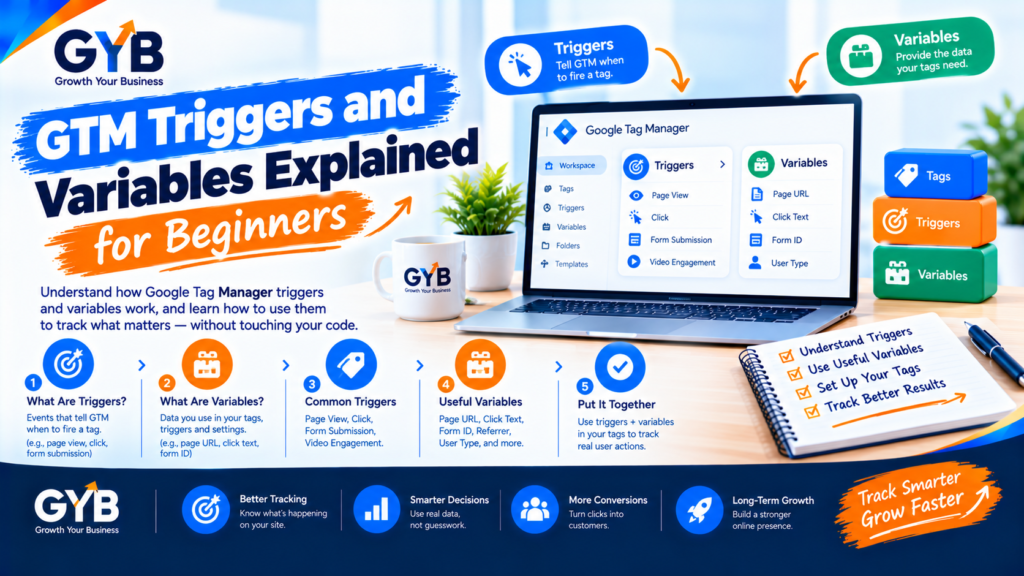
GTM Triggers and Variables Explained for Beginners
GTM triggers and variables are the two building blocks that decide when a tag fires and what data it sends. A trigger is the rule (“fire when someone clicks the call button”), and a variable is the value a tag or trigger reads, such as the page URL or button text. Learn these two parts, test in Preview mode, and tracking stops feeling like guesswork.
Updated October 2026 by the Growth Your Business team. Growth Your Business is a performance advertising agency for UK and US businesses offering Google Ads, Meta Ads, conversion tracking and CRM integration.
Key takeaways
- Google Tag Manager works with three parts: tags (what to send), triggers (when to send it) and variables (the values to use).
- A tag fires when any one of its triggers happens. Inside one trigger, all conditions must be true.
- Built-in variables are off by default. Enable the ones you need, and remember click and form variables only return values once a matching trigger exists.
- For forms that don’t use a normal page reload, a Custom Event trigger with a dataLayer event is usually more reliable than the built-in form trigger.
- AI can draft triggers and code, but you must test in Preview mode, and AI-written JavaScript must be ES5.
How do tags, triggers and variables fit together?
| Part | The question it answers | Example |
|---|---|---|
| Tag | What should happen? | Send a GA4 event called click_to_call |
| Trigger | When should it happen? | When someone clicks a link starting with tel: |
| Variable | What value should be used or checked? | Click URL, Page Path, Measurement ID |
Put together: “When a visitor clicks a link whose Click URL starts with tel: (trigger + variable), send a GA4 event called click_to_call (tag).” That’s the whole idea, repeated in different ways. If you haven’t installed GTM yet, start with our guide to installing Google Tag Manager on WordPress.
What are GTM triggers?
A trigger listens for something to happen on your page, checks any conditions you set and then tells a tag to fire.
| Trigger type | Fires when | Typical use |
|---|---|---|
| Page View (including DOM Ready and Window Loaded) | A page loads | Your base GA4 tag on all pages |
| Click: Just Links | A visitor clicks a link | Phone (tel:), email (mailto:) and WhatsApp links |
| Click: All Elements | A visitor clicks any element | Buttons that aren’t links |
| Form Submission | A form is submitted using the browser’s standard submit | Simple forms |
| Scroll Depth / Element Visibility / Timer | A visitor scrolls, sees an element or stays a set time | Engagement events (use sparingly) |
| Custom Event | A named event is pushed to the dataLayer | Form success, purchases, anything your site announces |
| Trigger exception | A blocking rule is true | Stop a tag firing on certain pages |
Two rules that save beginners a lot of confusion:
- If a tag has several triggers, it fires when any one of them happens.
- Inside one trigger, if you add several conditions, all must be true.
What are GTM variables?
Variables are placeholders that hold a value. A trigger can check a variable (“Click URL contains wa.me”), and a tag can use one (“send the Page Path with this event”).
Built-in variables come with GTM, but most are switched off. Go to Variables → Configure and enable the ones you need. Useful ones include:
- Page URL, Page Path, Page Hostname, Referrer
- Click Text, Click URL, Click ID, Click Classes, Click Element (used with click triggers)
- Form ID, Form Classes, Form Element (used with form triggers)
Remember: click and form variables only return values once a click or form trigger is in play, so enabling them alone doesn’t fill them with data.
User-defined variables are ones you create:
| Variable type | What it does | Example |
|---|---|---|
| Constant | Stores a fixed value | Your GA4 Measurement ID (set once, reuse everywhere) |
| Data Layer Variable | Reads a value your site pushes to the dataLayer | form_name |
| URL | Pulls part of the page address | Path or query value |
| 1st-party Cookie | Reads a cookie value | A consent or campaign cookie |
| Lookup Table | Turns one value into another | Page path to page category |
| Custom JavaScript | Runs a small piece of code | Advanced cases (must use ES5) |
A good habit: store your Measurement ID in a Constant variable, so you change it in one place only.
What are three practical examples?
Example 1: Track phone clicks
- Enable the Click URL variable.
- Trigger: Click: Just Links, fires on some link clicks, with the condition Click URL starts with
tel:. - Tag: a GA4 event named
click_to_call. - Test in Preview mode, then mark
click_to_callas a key event in GA4. See GA4 key events.
Example 2: Track WhatsApp clicks
- Trigger: Click: Just Links, with the condition Click URL contains
wa.me(add a second condition group or trigger forapi.whatsapp.comif your links use it). - Tag: a GA4 event named
click_whatsapp.
Example 3: Track a form success with a custom event
Built-in form triggers often miss forms that submit without reloading the page. A more reliable method is for the form to push an event to the dataLayer when it succeeds:
dataLayer.push({ 'event': 'form_success' });- Trigger: Custom Event, with the event name
form_success. - Tag: a GA4 event named
generate_lead. - Add a data layer variable if you want to send the form’s name as a parameter. Don’t send names, emails or phone numbers.
(Link to “Track Form Submissions in GTM and GA4” once that post is published.)
How do you test triggers and variables?
- In GTM, click Preview and enter your site address.
- In the Tag Assistant window, perform the action (click the phone link, submit a test form).
- Open the event in the left panel and check:
- Tags Fired shows your tag (and Tags Not Fired shows why it didn’t).
- The Variables tab shows the value of each variable at that moment.
- The Data Layer tab shows the events your site pushed.
- Open GA4 DebugView and confirm the event arrives once.
- Publish the container only when it works, then test again on the live site in an incognito window.
How should you name tags, triggers and variables?
Clear names save hours later:
| Item | Example name |
|---|---|
| Tag | GA4 - Event - click_to_call |
| Trigger | Click - Just Links - tel: |
| Variable | Const - GA4 Measurement ID |
| Custom Event trigger | CE - form_success |
Use folders for groups (for example “GA4”, “Meta”, “Consent”) and add short notes to tags that need explaining.
How do you use AI with GTM triggers and variables, then verify by hand?
AI tools like ChatGPT or Gemini are good at turning a plain-English goal into a trigger plan, but they can’t see your site.
| Step | What AI can do | What you must check manually |
|---|---|---|
| Plan triggers | Turn goals into trigger and tag suggestions | Test each one in Preview mode |
| Write conditions and regex | Draft a pattern such as `^(lead_submit | quote_request)$` |
| Write dataLayer code | Draft a dataLayer.push snippet |
Confirm your developer or plugin pushes it at the right moment |
| Write Custom JavaScript | Draft a small script | GTM needs ES5 syntax, so check it avoids modern features such as arrow functions and let |
| Explain Preview output | Interpret what you paste | Reproduce the action on your live site |
Sample prompt:
I use Google Tag Manager on WordPress. I want to track clicks on tel: links and send a GA4 event called click_to_call. Give me the trigger type, the conditions and the variables I need to enable. Write any code in ES5 only, and don’t invent GTM settings that don’t exist.
Never paste passwords, access tokens or customer data into an AI tool.
What are the common mistakes with GTM triggers and variables?
- Forgetting to enable built-in variables
- Making a trigger too broad (firing on all clicks instead of one link)
- Using
.*regex in a Custom Event trigger, which matches every event - Relying on the built-in form trigger for forms that don’t reload the page
- Mixing “any” and “all” logic between multiple triggers and conditions
- Writing Custom JavaScript in modern syntax instead of ES5
- Not testing in Preview mode, or forgetting to publish
- Sending personal data in variables or event parameters
- Ignoring consent settings on tags that track visitors
UK and US notes
- Consent: in the UK and EU, tags that track visitors generally need consent before they fire. Use GTM’s consent settings with your cookie tool. In the US, state privacy laws vary. This is general information, not legal advice.
- Personal data: be careful with variables like Click Text. A button or link that contains a person’s name or email could send personal data to GA4, which Google’s policies prohibit.
Frequently asked questions
What is a trigger in Google Tag Manager?
A trigger is a rule that decides when a tag fires. It listens for an event on your page, such as a page load, a click, a form submission or a custom dataLayer event, and checks any conditions you set before letting the tag run.
What is a variable in Google Tag Manager?
A variable is a placeholder that holds a value, such as the page URL, button text or your Measurement ID. Triggers use variables to check conditions, and tags use them to send dynamic data.
What is the difference between a trigger and a variable?
A trigger decides when something happens, and a variable provides the value used to decide or to send. For example, a click trigger fires when a link is clicked, and the Click URL variable checks whether that link starts with tel:.
Do I need to enable built-in variables in GTM?
Yes, most are off by default. Go to Variables, choose Configure and tick the ones you need, such as Click URL or Form ID. Click and form variables only return values when a click or form trigger is used.
What is a Custom Event trigger?
A Custom Event trigger fires when your site pushes an event with a specific name to the dataLayer, such as form_success. It is often more reliable than built-in form tracking, because your site announces exactly when the action succeeds.
Why isn’t my GTM trigger firing?
Common causes are conditions that don’t match, a variable that isn’t enabled, a cached page, an unpublished container or consent blocking the tag. Check the Tags Not Fired list and the Variables tab in Preview mode to see which condition failed.
Can a tag have more than one trigger?
Yes. The tag fires whenever any one of its triggers happens. If you need several conditions to be true together, put them inside a single trigger instead.
What is a trigger exception in GTM?
A trigger exception is a blocking rule. If it’s true, the tag won’t fire even if its normal trigger happens. Use it to stop a tag from firing on specific pages, such as a thank-you page.
Final thoughts
GTM triggers and variables look technical, but they follow one simple pattern: choose the moment, check the value, send the tag. Name things clearly, test everything in Preview mode and keep your logic simple. Once these two parts click, every other tracking job gets easier.
Sources
- Relevant Audience: Google Tag Manager Triggers: How Each Type Works and When to Use It
- Measure School: A Complete Guide to Google Tag Manager Triggers
- Measure School: Complete Guide to Google Tag Manager Variables
- Add a link to Google’s official Tag Manager Help articles on triggers and variables (search “Tag Manager triggers” in Tag Manager Help and paste the URLs)
Not Sure Your Tracking Fires When It Should?
Growth Your Business builds and audits Tag Manager setups, so every call click, form and purchase is tracked correctly. See our Google Tag Manager setup, GA4 setup and server-side tracking services, or learn about us.
Prefer to talk first? Get a Free Consultation, or Book a Free 30-Minute Call, or Message us on WhatsApp or visit our Contact page.