
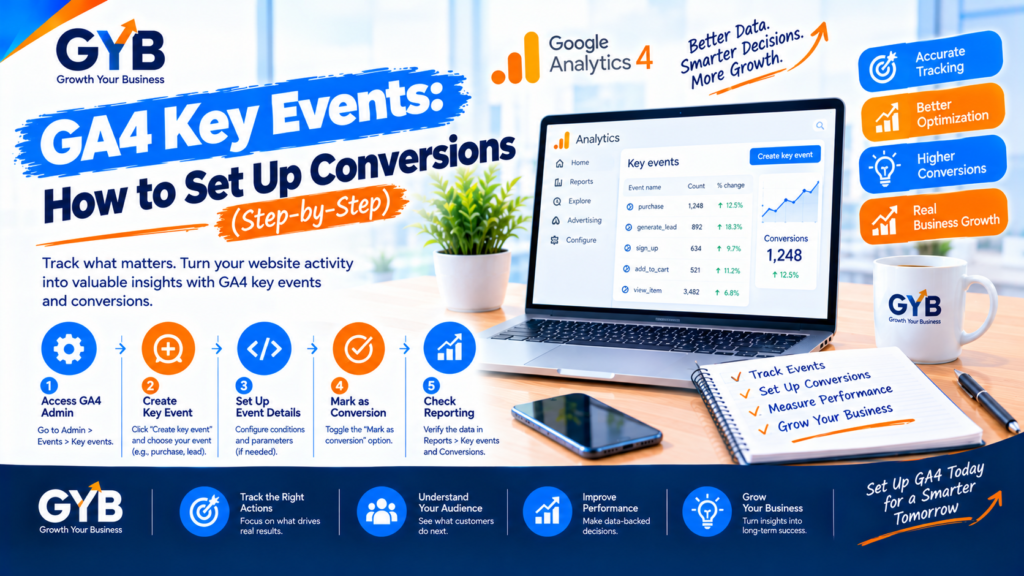
GA4 Key Events: How to Set Up Conversions (Step-by-Step)
GA4 key events are the actions you mark as important in Google Analytics 4, such as form submissions, call clicks or purchases. To set them up, make sure GA4 receives the event, open Admin → Data display → Events, and mark it as a key event. Then test it. Marking is not retroactive, so do it before you rely on the numbers.
Updated October 2026 by the Growth Your Business team. Growth Your Business is a performance advertising agency for UK and US businesses offering Google Ads, Meta Ads, conversion tracking and CRM integration.
Key takeaways
- A key event is a GA4 event you mark as business-critical. Google renamed what used to be called conversions in GA4.
- Start with 2 to 5 key events that match real business results, not clicks on everything.
- Marking is not retroactive, so past events won’t be counted.
- Key events don’t automatically become Google Ads conversions. You need to link the accounts and import them.
- AI can help you plan and review, but you must test every key event and compare it with your real leads.
What are GA4 key events, and how are they different from conversions?
GA4 records everything as an event: a page view, a click, a form submission, a purchase. A key event is an event you flag as important. GA4 then counts it in its key event metrics, calculates key event rates and uses it in attribution reporting.
The wording causes confusion, so here’s how the terms fit together:
| Term | Where it lives | What it means |
|---|---|---|
| Event | GA4 | Any recorded action (for example form_submit, click, purchase) |
| Key event | GA4 | An event you mark as important to your business |
| Google Ads conversion | Google Ads | An action Google Ads uses for bidding and reporting, which can be imported from a GA4 key event |
So a key event is a GA4 idea. It only becomes a Google Ads conversion after you link the two and import it.
Which actions should you mark as GA4 key events?
Mark only deliberate actions that show real interest or revenue.
| Business type | Primary key events | Secondary key events |
|---|---|---|
| Lead generation / services | generate_lead (form submission), booking confirmed |
Call button click, WhatsApp click |
| Ecommerce | purchase |
begin_checkout, add_to_cart |
| SaaS or sign-ups | sign_up, trial started |
Demo request |
Rules of thumb:
- Don’t mark
page_view,scrollor every click. That fills your reports with noise. - A standard GA4 property allows up to 30 key events (50 for Analytics 360), but five that you actually review beat twenty-five that nobody reads.
- Use clear, consistent event names. Event names are case-sensitive.
How do you set up GA4 key events? (Step by step)
Step 1: Write a measurement plan
List each action, the event name, and what triggers it:
| Business action | Event name | Trigger |
|---|---|---|
| Contact form sent | generate_lead |
Thank-you page view or form success message |
| Phone button clicked | click_to_call |
Click on tel: links |
| WhatsApp clicked | click_whatsapp |
Click on wa.me links |
| Purchase completed | purchase |
Order confirmation |
Step 2: Make sure GA4 receives the event
A key event can’t exist until GA4 records the event. The most reliable route for most businesses is Google Tag Manager: create a GA4 event tag with the exact event name and fire it on the right trigger. Some events (such as purchases on a properly integrated store) arrive automatically. Avoid relying on automatic form tracking alone, because it often misfires. A thank-you page or a dedicated form-success event is more dependable.
(Link to “How to Track Form Submissions in GTM and GA4” once that post is published.)
Step 3: Mark the event as a key event
You can do this in two ways:
- Mark an existing event: go to Admin → Data display → Events, find the event, and turn on Mark as key event (the star).
- Create it first: if the event hasn’t arrived yet, use New key event (or Create event with the Mark as key event toggle) and type the exact, case-sensitive event name.
GA4 starts counting it as a key event when it arrives. It does not go back and reprocess old data.
Step 4: Choose the counting method
Each key event has a counting method:
| Method | How it counts | When to use it |
|---|---|---|
| Once per event | Every occurrence | Recommended for most businesses, when each occurrence is a real result |
| Once per session | At most once per session | Mainly for comparing with old Universal Analytics goals |
If you see duplicates, fix the trigger first (for example, a thank-you page that refreshes) instead of hiding them with a counting method.
Step 5: Set a default value (optional)
You can give a key event a default value. Only do this if the number is real, such as your average lead value from your own sales data. A made-up value will distort your reports and your bidding. If you have a CRM, a better long-term option is passing real values back from it. See our CRM integration service.
Step 6: Test it
Use Realtime and DebugView (more on this below) and confirm the event appears with the right name, once.
Step 7: Connect Google Ads and import (if you advertise)
Key events don’t automatically become Google Ads conversions. Link GA4 to Google Ads, then import the key events you want to use for bidding. Be careful not to count the same action twice, once from a Google Ads tag and once from the GA4 import. Our PPC agency team checks this as part of every account audit. If you use AI Max or other automated bidding, accurate conversions matter even more (see our guide to AI Max for Search, link once published).
(Link to “Link GA4 to Google Ads: Import Conversions” once published.)
How do you test GA4 key events?
- Realtime report: open your site in another tab, trigger the action (submit a test form, click the call button) and watch for the event.
- DebugView: use Tag Manager’s preview mode or the debug extension to see each event and its parameters as they arrive.
- Tag Assistant: confirm only one GA4 tag fires, to avoid duplicates.
- Key events list: go to Admin → Data display → Key events and check the event is listed and counting.
- Compare with reality: after a day or two, check that the number of key events roughly matches the leads in your inbox or CRM.
If an event is missing, check the spelling (it’s case-sensitive), confirm the tag fires, and make sure consent settings aren’t blocking it.
Where do you see GA4 key events in your reports?
Once marked, key events appear across GA4:
- Reports → Engagement → Events, filtered by key events
- Acquisition reports, with columns for key events and key event rate
- Explorations, where you can build funnels and breakdowns
- Metrics such as session key event rate (sessions with a key event divided by total sessions) and user key event rate
A Looker Studio dashboard can show them next to your ad spend and cost per lead.
How do you use AI to set up GA4 key events, then verify by hand?
AI tools such as ChatGPT or Gemini can speed up planning and review, but they can’t see your site, so a human must check everything.
| Step | What AI can do | What you must check manually |
|---|---|---|
| Plan your events | Turn your business goals into a measurement plan with event names | Confirm each event matches a real business result |
| Standardize names | Suggest a naming convention and flag inconsistencies | Make sure names match exactly what Tag Manager sends (case-sensitive) |
| Review tracking code | Spot likely errors in a dataLayer snippet you paste | Test in DebugView; never trust code without testing |
| Interpret DebugView output | Explain what an event and its parameters mean | Verify the real behavior on your live site |
| Check results | Summarize an exported key events table | Compare with your CRM and inbox. Check lead quality, not only counts |
Sample prompt (paste event names and descriptions only, never personal data):
I run a [type of business]. These are my business goals: [goals]. Create a GA4 measurement plan as a table with event name (lowercase with underscores), trigger, whether it should be a key event, and why. Use Google’s recommended event names where they exist, and don’t invent parameters.
Then compare the plan with your real site and your sales process. Never send personal data (names, emails, phone numbers) as event parameters, because Google’s policies prohibit it.
What are the common GA4 key event mistakes?
- Marking too many events as key events
- Marking
page_view,scrollor every click - Typos or case differences in event names
- Expecting past data to appear after marking
- Duplicate events from a refreshing thank-you page or a tag installed twice
- Counting the same action in both a Google Ads tag and the GA4 import
- Never comparing key events with real leads
- Ignoring consent, so events silently drop
UK and US notes
- Consent: in the UK, UK GDPR and PECR generally require consent before analytics cookies fire. In the US, state privacy laws vary by state. Set up your consent banner and Google Consent Mode properly. This is general information, not legal advice.
- Personal data: don’t send personal information to GA4 in event names or parameters in either market.
- Currency and value: if you set default values, use your reporting currency (£ or $) consistently.
Frequently asked questions
What are GA4 key events?
GA4 key events are the events you mark as important to your business, such as a form submission, call click or purchase. GA4 counts them in key event metrics and uses them in attribution reporting. Google renamed what used to be called conversions in GA4.
Are GA4 key events the same as conversions?
Not exactly. Key events are a GA4 concept. A Google Ads conversion is an action Google Ads uses for bidding and reporting, and it only exists in Google Ads once you link the accounts and import it.
How many key events can I have in GA4?
A standard property can have up to 30 key events, and an Analytics 360 property up to 50. In practice, start with two to five that match real business results, and review them regularly.
Can I mark past events as key events?
No. Marking an event as a key event applies from that moment on. GA4 doesn’t reprocess historical data, so mark your events before you start relying on the reports.
How do I mark an event as a key event in GA4?
Go to Admin, then Data display, then Events, and turn on “Mark as key event” for the event. If the event hasn’t arrived yet, use “New key event” and type the exact, case-sensitive name.
Which counting method should I choose?
Choose “once per event” for most businesses, because each occurrence is usually a real result. “Once per session” counts at most one per session and mainly helps when comparing with old Universal Analytics goals.
Why isn’t my event showing under key events?
Check that the event is actually being sent, that the name matches exactly (it’s case-sensitive), and that consent settings aren’t blocking it. If it hasn’t arrived yet, add it with “New key event” using the exact name.
Do GA4 key events appear in Google Ads automatically?
No. You need to link GA4 and Google Ads, then import the key events you want to use. Make sure you don’t also have a separate Google Ads tag counting the same action.
Final thoughts
GA4 key events turn a pile of data into a few numbers that matter. Plan them first, send them cleanly, mark them, test them and compare them with real leads. Get that right once and every ad, SEO and conversion decision after it gets easier.
Sources
- PPC Land: Key event
- Loves Data: Key Events in GA4
- Relevant Audience: GA4 key events: what they are and how to set them up
- Add a link to Google’s official Analytics Help article on key events (search “key events” in Google Analytics Help and paste the URL)
Not Sure Your GA4 Is Tracking Real Leads?
Growth Your Business sets up and audits GA4, Tag Manager and conversion tracking, so your Google Ads and Meta Ads run on data you can trust. See our GA4 setup service, our full GA4 guide for businesses or learn about us.
Prefer to talk first? Get a Free Consultation, or Book a Free 30-Minute Call, or Message us on WhatsApp or visit our Contact page.